![ComplianceHR-Logo-400x100.png]](https://knowledge.compliancehr.com/hs-fs/hubfs/ComplianceHR-Logos/ComplianceHR-Logo-400x100.png?height=40&name=ComplianceHR-Logo-400x100.png)
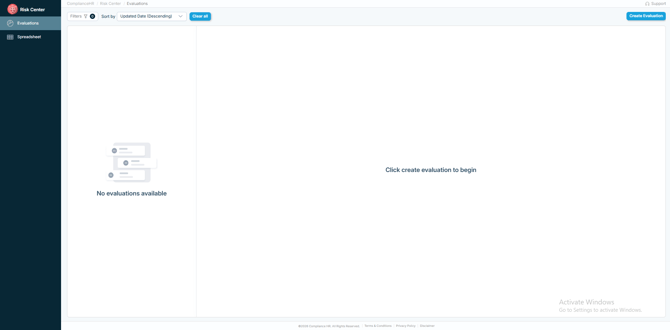
Within the left hand rail, you will find two main components that organize the content within the Risk Center, Evaluations and Spreadsheet. Prior to creating new evaluations, each component will appear empty. The Evaluations component serves as the default view when a user accesses the Risk Center.
To begin, select Create Evaluation in the upper righthand corner.
You will have the option to select either an Independent Contractor or Overtime Exempt questionnaire.
Based on the type of evaluation selected, you will be prompted to enter different criteria. 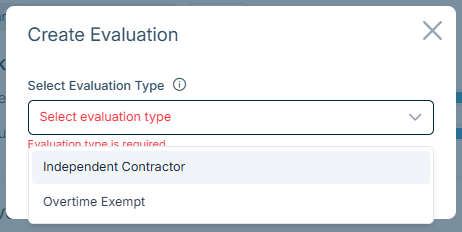
Independent Contractor:
You will be prompted to enter Work State, the Subject, and the Company.
Overtime Exempt:
You will be prompted to enter the Work State and the Subject.
If you need assistance, refer to the information icon by each title.
Each evaluation has a Smart Content page as shown below in this overtime exempt example.
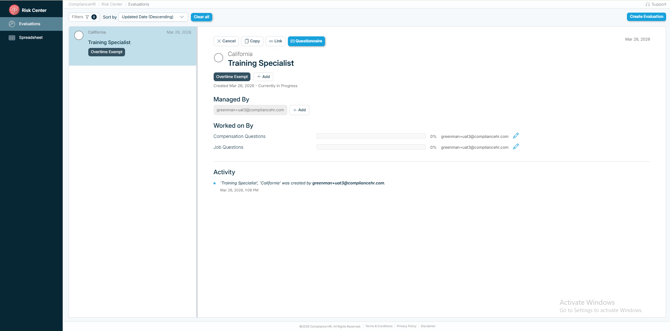
At the top, you'll find options to cancel or copy the in-progress evaluation, a unique link to the specific evaluation that allows the Manager to share it, and a button to access the Questionnaire. You'll also find the Jurisdiction and the Subject being evaluated. In the example above, the Work State was California and the Subject is Training Specialist.
Next, you'll find the Overtime Exempt or Independent Contractor tag, an option to add custom tags, the evaluation created date, and current progress.
The “Managed By” section shows all users who have access to the evaluation.
Managers can copy, cancel, or download the evaluation, update tags, and add or
remove other managers. They can also see who’s assigned to the questionnaire and
adjust assignments as needed. By default, the first Manager is the user who created the evaluation.
The “Worked On By” section shows who’s assigned to the questionnaire and lets
managers update those assignments.
The Overtime Exemption evaluation is split into two sections, each of which can be assigned separately.
Compensation Questions
These questions cover how the is position paid.
Job Duties:
These questions are specific to the work performed.
The Independent Contactor evaluation is split into three sections, each of which can be assigned separately.
Engagement Questions
These questions cover the details of the working relationship, including the agreement, how the work will be performed, payment, resources, supervision, and expectations for the engagement.
Contractor Questions
These questions ask about the contractor's business, including how they operate, serve other clients, invest in their business, and maintain the licenses, resources, and independence needed to perform the work
Company Questions
These questions focus on your company's relationship with the contractor, including the level of control over the work, whether the work is part of your core business, and how the contractor compares to your employees
By default, both are assigned to the user who created the evaluation.
Activity will show action taken on this particular evaluation by anyone interacting on it, including all activities completed by managers.
To work on an assigned questionnaire, click the Questionnaire button.