![ComplianceHR-Logo-400x100.png]](https://knowledge.compliancehr.com/hs-fs/hubfs/ComplianceHR-Logos/ComplianceHR-Logo-400x100.png?height=40&name=ComplianceHR-Logo-400x100.png)
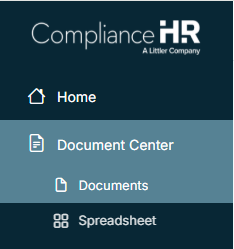
The Document Center consists of two components: Documents and Spreadsheet.
Within the Documents Component, you'll be able to create or view previously created documents.
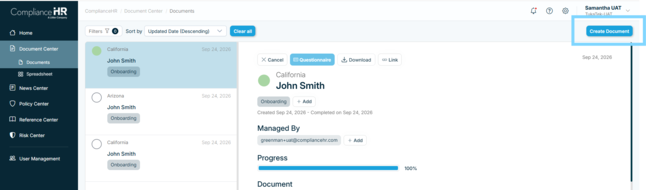
To begin a new document, click Create Document.
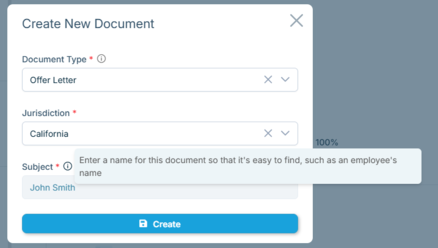
Select the type of Onboarding or Leave form you would like to create using the drop down. Next select the Jurisdiction and enter the Subject, as shown in the example below.
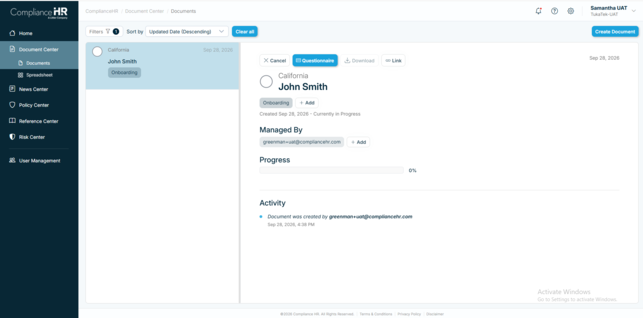
A new entry will appear. At the top of the smart content page, you will see options to Cancel the Document, access the Document Questionnaire, Download the document once completed, and a link to the document you may share with other direct users of the tool.
You will also see a Managed By section that shows the users who can view and work on a document. The creator is always included. You will also see a Progress and Activity log related to the Document.
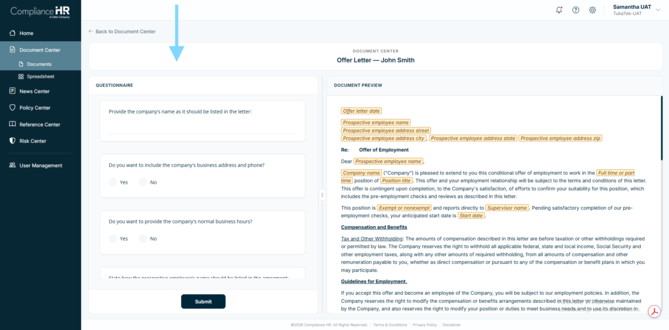
After clicking the Questionnaire button, you will be able to answer the questions displayed in the left rail. The questionnaire is dynamic and will display answers within the Document Preview. You may answer the questions in any order. Subsequent questions may appear based on your previous answers. Answers will be saved, so you may resume answering them at a later time.
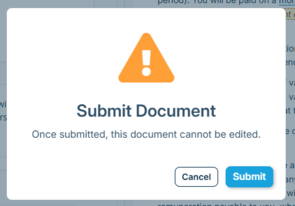
Once the Document Questionnaire has been completed, click on Submit.
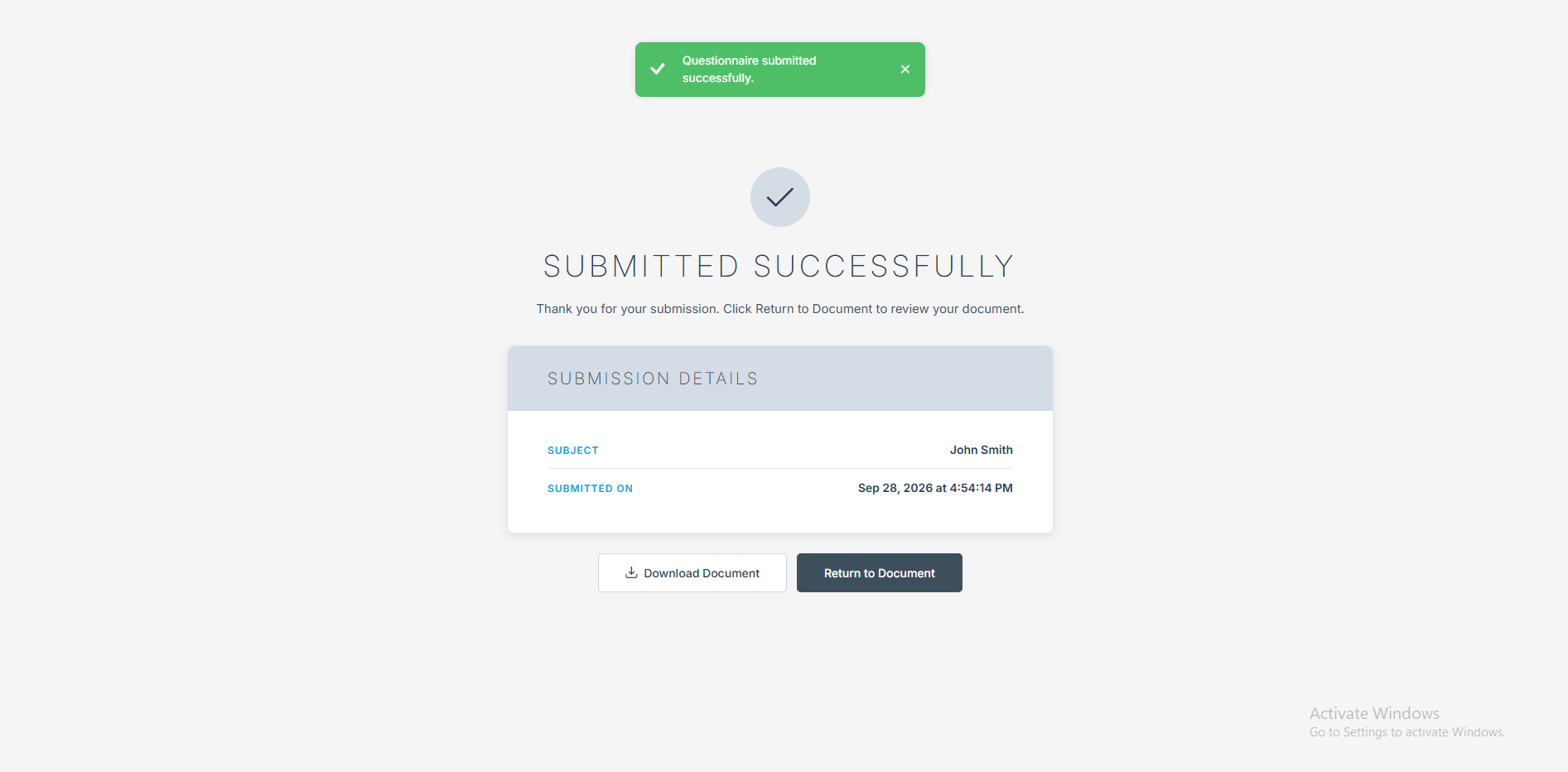
You can then choose to download the Document or Return to the Document Component.
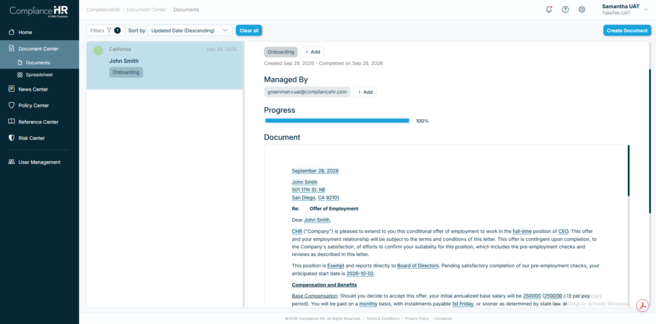
Within the Document Component, you will see the smart content page for John Smith has updated to show the completed Document.